Guest Wi-Fi Done Right: A Practical Setup Checklist for Offices
Clients, vendors, job candidates and contractors all expect to get online when they visit your office. Offering guest Wi-Fi is easy. Offering it safely takes a bit more care. A guest network that shares space with your file server, printers or point-of-sale system is a convenience for visitors and an open door for problems. The good news is that a properly built guest network is not complicated. Use this checklist to review what you have today.
Start with separation: keep guests off your business network
The most important rule of guest Wi-Fi is that guests should reach the internet and nothing else. A visitor's laptop or phone is a device you know nothing about. It may be out of date or already infected, so it should never be able to see your internal systems.
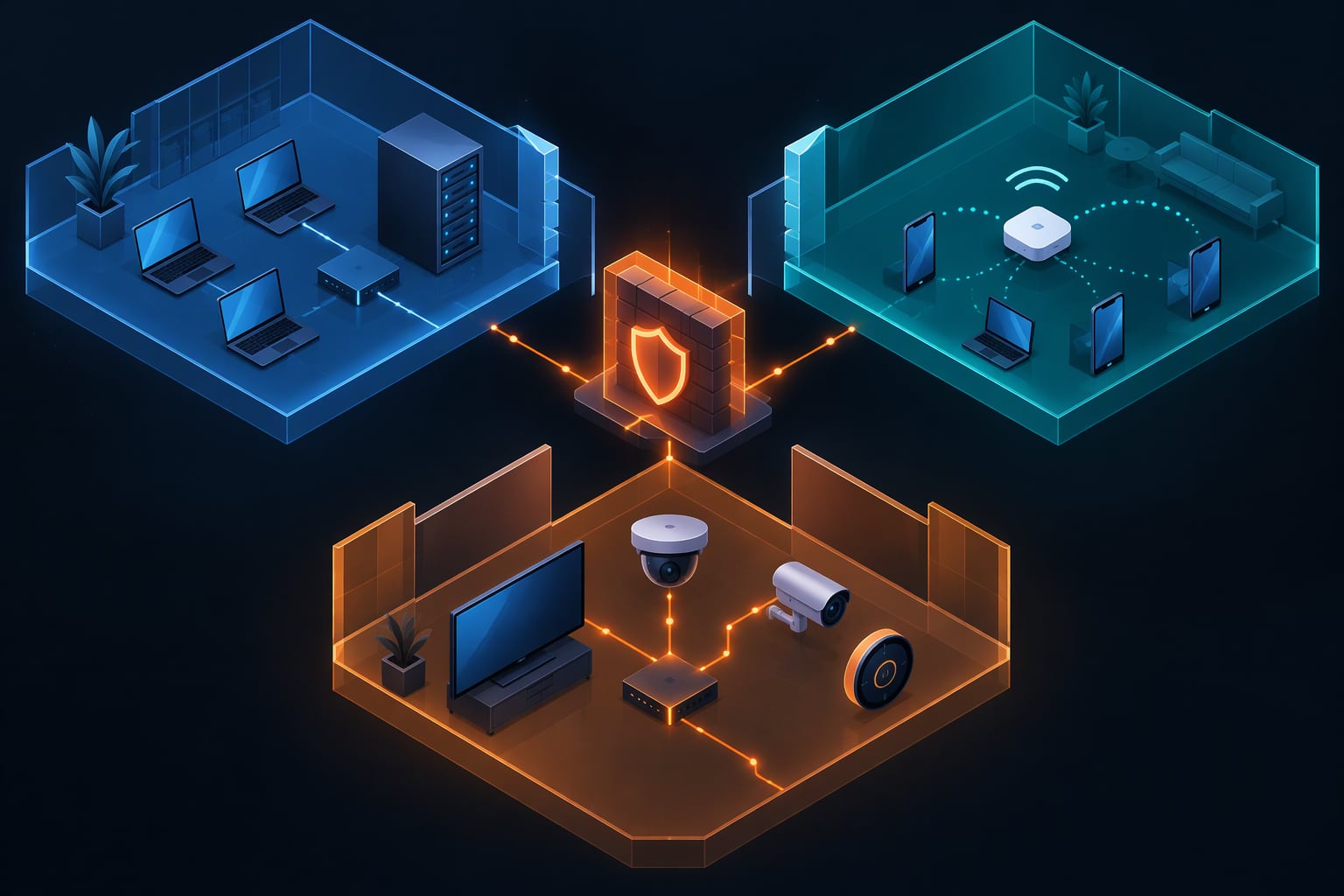
- Use a separate network segment. On business-grade equipment, this usually means placing the guest SSID on its own VLAN with firewall rules that block traffic to your internal networks.
- Turn on client isolation. Often called AP isolation or guest isolation, this setting stops guest devices from talking to each other, so one compromised phone cannot probe another visitor's laptop.
- Block access to management interfaces. Guests should not be able to reach the login pages of your firewall, access points or switches.
- Do not plug a consumer router into your office network to create a guest network. It may seem like a quick fix, but it often bypasses your firewall policies and creates a device nobody monitors or updates.
A quick way to test it
Connect a laptop to your guest network and try to reach a shared printer, a mapped drive or your firewall's admin page. If any of them respond, your separation is not working the way it should.
Lock down the wireless settings
- Use modern encryption. Choose WPA3 where your access points and visitors' devices support it, or WPA2/WPA3 transition mode for compatibility. Avoid open networks with no encryption, and never use legacy WEP or WPA.
- Disable WPS. Wi-Fi Protected Setup is a convenience feature with a history of weaknesses, and it is not needed in an office.
- Use a clear, separate network name. Something like "CompanyName-Guest" makes it obvious which network visitors should join and keeps them off your staff network.
- Keep firmware current. Access points and firewalls receive security updates like any other device. Outdated firmware on networking gear is a common and avoidable gap.
Manage the password (or portal) sensibly
A guest password that has not changed since the office opened has likely been shared far beyond your lobby. A few simple habits help:
- Rotate the guest password on a schedule, such as monthly or quarterly, and whenever it ends up somewhere it should not be.
- Never reuse your staff Wi-Fi password or any other business password for the guest network.
- Consider a captive portal that shows a short acceptable-use page or issues time-limited access codes. Many business Wi-Fi platforms include this. If you add terms of use, have them reviewed by your own legal advisor.
- Display the password discreetly at the front desk or in conference rooms rather than on a sign visible from the parking lot.
Protect your bandwidth and your reputation
Guest traffic leaves your office through your internet connection, so it affects both your performance and how your connection is used.
- Set bandwidth limits. Cap per-device or total guest throughput so a visitor streaming video does not slow down your video calls or cloud applications.
- Apply DNS or web content filtering. Blocking known malicious and inappropriate sites reduces the chance of your connection being used for something you would not want associated with your business.
- Schedule availability. If nobody needs guest access at 2 a.m., consider turning the guest SSID off after business hours.
- Limit signal reach where practical. Adjusting access point placement and power can keep coverage focused on your space instead of the parking lot next door.
Keep the "in-between" devices in their own lane
Many offices put smart TVs, conference room displays, cameras, thermostats and other connected gadgets on the guest network because it is convenient. That mixes untrusted visitor devices with equipment you rely on. A better approach is a separate segment for IoT and building devices, with only the access each one actually needs. If you process card payments, keeping payment systems isolated from guest and general networks is also an important part of limiting your PCI DSS scope.
Document it and review it
- Write down which SSIDs exist, which VLAN each uses and what each is allowed to reach.
- Note who is responsible for rotating the guest password.
- Review your settings at least once a year, and any time you change internet providers, add access points or move offices.
- If you carry cyber insurance or follow a compliance framework, keep this documentation handy. Network segmentation questions are common on security questionnaires.
How Streamline Networks can help
Since 2001, Streamline Networks has helped businesses across Georgia and the US design and run networks that are fast, reliable and secure. For guest Wi-Fi and wireless in general, we can:
- Assess your current setup and confirm that guest, staff, IoT and payment traffic are properly separated.
- Design and deploy business-grade Wi-Fi and firewalls with VLANs, client isolation, content filtering, bandwidth controls and captive portals configured to fit how your office works.
- Keep everything patched and monitored 24/7, so firmware updates and unusual activity do not fall through the cracks.
- Maintain clear network documentation that supports your compliance and cyber-insurance readiness.
- Support your team through our help desk when someone needs the guest code or a conference room display stops connecting.
All of this is covered under one transparent monthly rate, so you can offer visitors a great experience without wondering what your network is exposing.
Ready for guest Wi-Fi you don't have to worry about? Get a quote or call 678-450-2400.