MFA Fatigue Is Real: Move Your Team to Phishing-Resistant Sign-Ins
Turning on multi-factor authentication (MFA) is one of the best security moves a business can make. Attackers have adapted, though. Some now flood employees with sign-in prompts until someone taps "Approve" just to make them stop. Others use fake login pages that pass your password and MFA code to the real site in real time. The good news is that newer sign-in methods are built to resist these tricks, and moving to them is more practical than most business owners expect.
Why some MFA methods are stronger than others
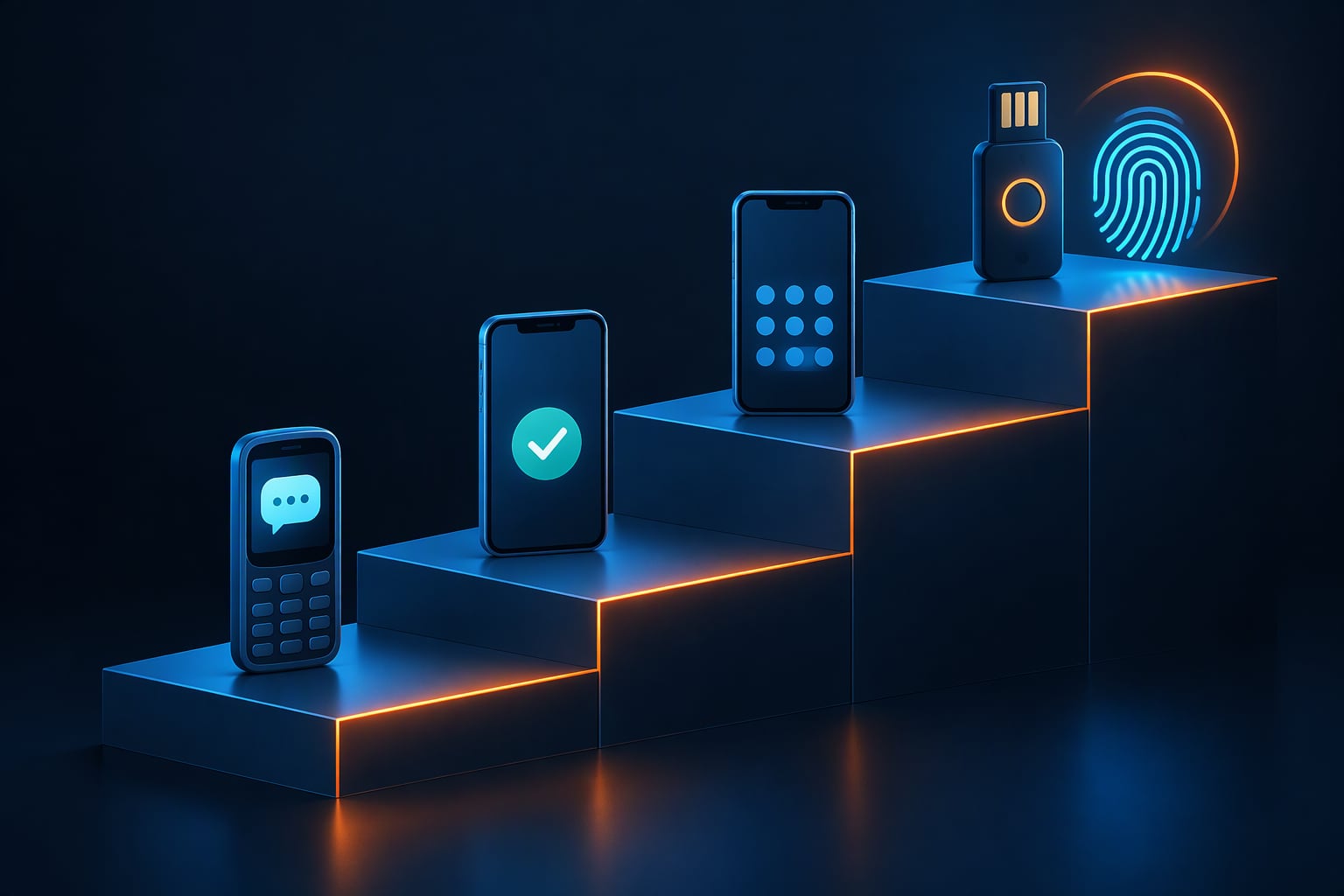
All MFA is better than none. But each method protects you differently:
- Text message and phone call codes are the weakest common option. Codes can be phished, and phone numbers can be hijacked through SIM-swap scams.
- Simple push notifications ("Approve or Deny") are convenient, but they invite "MFA fatigue." A tired or distracted employee may approve a prompt they didn't start.
- Push with number matching is a real improvement. The user must type a number shown on the login screen, so a random prompt can't simply be approved.
- Phishing-resistant methods include passkeys, FIDO2 security keys, and Windows Hello for Business. They are cryptographically tied to the real website, so a look-alike phishing page can't capture anything useful.
The goal isn't to rip everything out overnight. It's to steadily move your people up this ladder, starting with the accounts that matter most.
Tip 1: Start with an MFA inventory
Before changing anything, find out where you stand. In Microsoft 365, your administrator can run authentication methods reports in the Microsoft Entra admin center. Look for:
- Users with no MFA registered at all
- Users relying only on SMS or voice
- Shared or service accounts that skip MFA entirely
- Legacy sign-in methods (older email protocols) that bypass modern authentication
That list becomes your roadmap.
Tip 2: Protect admin accounts first
Global administrators, finance staff, and anyone who can approve payments or change payroll are the top targets. Give them phishing-resistant methods first:
- Issue FIDO2 security keys (small USB or NFC devices) or set up passkeys in Microsoft Authenticator.
- Use separate admin accounts for administrative work, not everyday email accounts.
- Keep one or two carefully secured "break-glass" emergency accounts so you can't get locked out of your own tenant.
Tip 3: Turn on the right policies
How you enforce MFA depends on your Microsoft 365 licensing:
- Security defaults are free and give smaller organizations a solid baseline of required MFA.
- Conditional Access (included with Microsoft Entra ID P1, which is part of Microsoft 365 Business Premium) lets you require stronger methods for specific users, apps, or risky situations. Its authentication strengths feature can require phishing-resistant MFA for admins while allowing number-matching push for everyone else during the transition.
- Block legacy authentication, since older protocols can't enforce MFA at all.
Tip 4: Roll out passkeys in waves
Passkeys let users sign in with their phone or computer's built-in unlock (fingerprint, face, or PIN) instead of typing a code. Many employees find them faster than what they use today. A smooth rollout looks like this:
- Pilot with a small, willing group, including at least one less tech-savvy person.
- Write a one-page guide with screenshots from your own environment.
- Expand by department, scheduling a short setup session for each team.
- Retire weaker methods like SMS once everyone has a stronger option registered.
For new hires, a Temporary Access Pass lets them register a passkey on day one without ever being handed a password.
Tip 5: Lock down MFA resets at the help desk
Strong MFA can be undone by a single phone call. Some attackers skip the technology altogether and call the help desk pretending to be an employee who "got a new phone." Set clear rules:
- Verify identity using information an attacker wouldn't easily have, such as a callback to the number on file or confirmation from the person's manager.
- Never reset MFA based only on a caller's name, title, or urgency.
- Log every MFA reset and review the log periodically.
- Notify the user through a separate channel whenever their sign-in methods change.
Tip 6: Teach employees what a strange prompt means
Even with better tools, people are part of the system. Make these points part of your security awareness training:
- An MFA prompt you didn't start means someone may already have your password. Deny it and report it right away.
- Repeated prompts are a warning sign, not a glitch.
- Reporting a mistake quickly is always welcome. No one gets in trouble for speaking up.
If you didn't try to sign in, don't approve it. Deny, then tell IT.
Tip 7: Watch for what happens after sign-in
Attackers who do get in often try to stay in by registering their own MFA device, creating mail forwarding rules, or reusing a stolen session. Make sure someone is watching for:
- New MFA methods added to an account unexpectedly
- Sign-ins from unusual locations or impossible travel patterns
- New inbox rules that forward or delete messages
How Streamline Networks can help
Since 2001, Streamline Networks has helped businesses in Gainesville, across Georgia, and throughout the US make security improvements without disrupting the workday. For a move to phishing-resistant MFA, we can:
- Audit your Microsoft 365 and Entra ID setup, including MFA registration, legacy authentication, and admin account hygiene.
- Design and configure Conditional Access policies that match your licensing and your people.
- Plan and support the rollout of passkeys, security keys, or Windows Hello for Business, with user guides and setup help from our help desk.
- Use verified identity procedures on our own help desk before any password or MFA reset.
- Monitor sign-in activity 24/7 through our managed SOC, alongside EDR, email security, and dark web monitoring that flags exposed credentials.
- Train your team with security awareness programs that cover MFA fatigue and fake login pages.
- Document your controls, which can help when cyber-insurance applications ask about MFA.
All of this is covered under one transparent monthly rate, so stronger security doesn't come with surprise invoices.
Ready to make your sign-ins harder to phish? Get a quote or call 678-450-2400.