Stop Emailing Attachments: Share Smarter with OneDrive Links

Someone emails a spreadsheet to five coworkers. Three of them edit it. By Friday you have "Budget_v4_FINAL_JM_edits.xlsx" and nobody is sure which copy is correct. Most offices have lived this. If your business uses Microsoft 365, you already have a better option: share a link to one file instead of sending copies. Everyone works on the same document, you control who sees it, and you can take access back later.
Here's how to make the switch without confusing your team.
Why links beat attachments
- One source of truth. Everyone opens the same file. Edits show up in one place instead of being scattered across inboxes.
- Real-time co-authoring. Word, Excel and PowerPoint files stored in OneDrive or SharePoint can be edited by several people at once.
- Version history. If someone overwrites a section by mistake, you can view or restore an earlier version.
- You can change your mind. An attachment is gone once it's sent. A link's permissions can be changed or removed later.
- Smaller mailboxes. Fewer large attachments means less mailbox bloat and fewer "file too large" bounces.
Know your sharing options
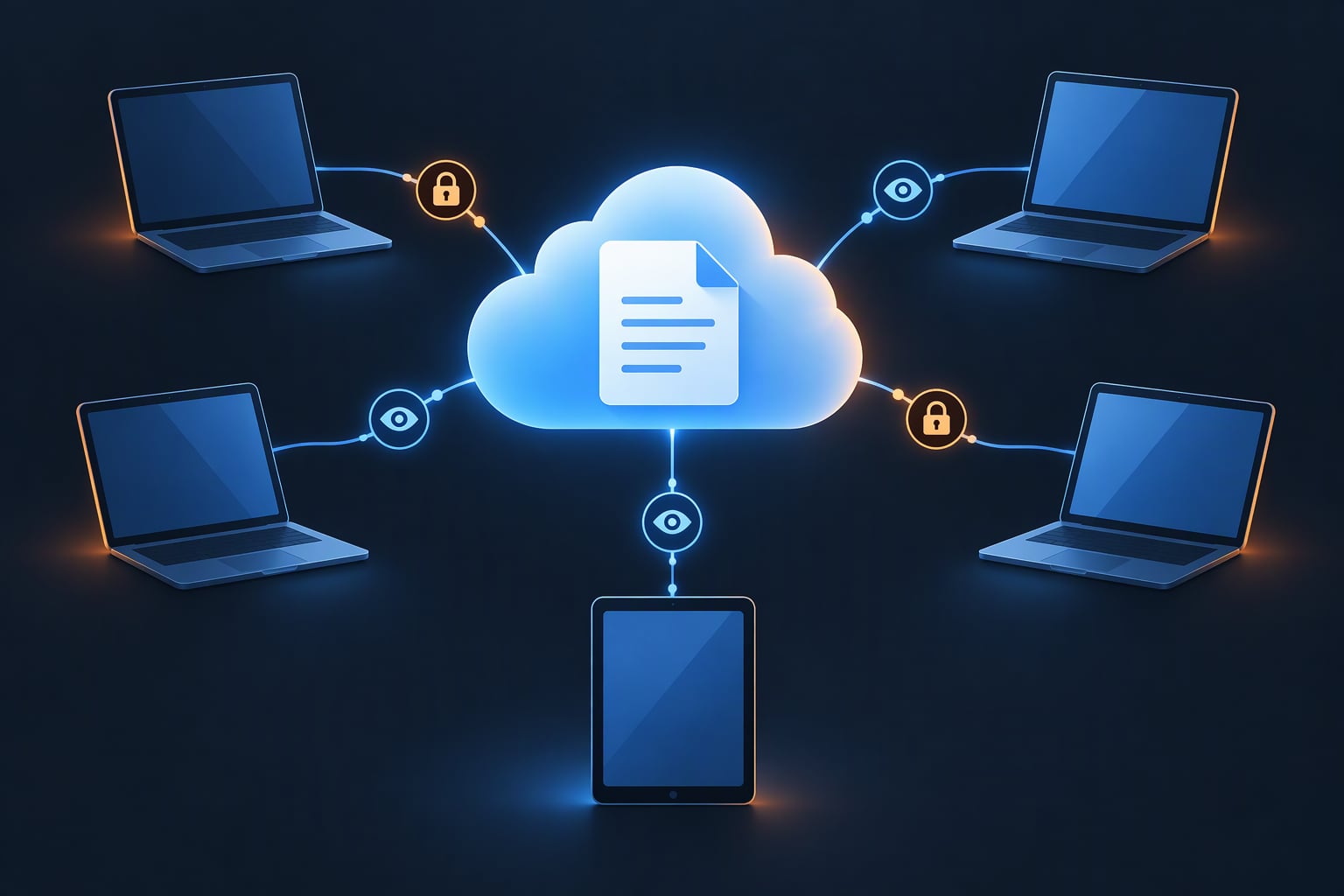
When you click Share on a file in OneDrive or SharePoint, you choose who the link works for. The exact options depend on how your administrator has configured Microsoft 365, but they usually include:
- Specific people: Only the people you name can open the file. This is the safest default for most business sharing.
- People in your organization: Anyone signed in with a company account can open it. This is useful for internal policies or forms, but not for sensitive material.
- People with existing access: This doesn't grant anything new. It gives a coworker a quick pointer to a file they can already open.
- Anyone with the link: Whoever has the link can open it, including people it gets forwarded to. Use this sparingly, if your organization allows it at all.
You also choose between can edit and can view. When in doubt, start with view-only. You can always upgrade someone later.
Practical tips for everyday sharing
1. Share from inside Outlook
When you attach a file that's stored in OneDrive or SharePoint, Outlook can send it as a link instead of a copy. Get in the habit of picking the link option. Recipients inside your organization get the live file, not a snapshot.
2. Set expiration dates for outside parties
Sending a proposal to a prospect or documents to an accountant? If your settings allow it, add an expiration date to the link so access ends on its own. Some link types also support a password. Send that password through a separate channel, such as a phone call or text, not in the same email.
3. Use view-only with download blocked for sensitive drafts
For view-only links, Microsoft 365 can often block downloads, so recipients can read the document in the browser but not easily save a copy. It won't stop a determined person from taking a screenshot, but it reduces casual copying and forwarding.
4. Review "Manage access" regularly
Every shared file has a Manage access view that shows who can open it. Make a habit of checking it on important files, especially after a project wraps up or a vendor relationship ends. Remove anyone who no longer needs access.
5. Use "Request files" to collect documents
Need W-9s, signed forms or photos from clients? OneDrive for business accounts include a Request files feature, if your administrator has enabled it. It lets people upload to a folder you choose without seeing anything else in it. That beats a dozen emails with attachments.
6. Put team files in SharePoint or Teams, not personal OneDrive
OneDrive is great for your own work in progress. Files the whole team depends on belong in a SharePoint site or a Teams channel. That way they don't disappear into someone's account when that person leaves the company.
7. Name files for humans
With version history built in, you no longer need "v2_FINAL_really-final" in the file name. Use a clear, descriptive name and let Microsoft 365 track the versions.
Rolling it out to your team
- Pick a start date and tell everyone that internal documents now get shared as links.
- Show, don't just tell. A 15-minute screen-share demo of sharing, co-authoring and version history goes a long way.
- Start with one shared document the whole office uses, such as a schedule or price list, and retire the emailed copies.
- Write a one-page cheat sheet that covers which link type to use for internal, client and vendor sharing.
- Ask for feedback after a few weeks and adjust.
A simple rule of thumb: share with specific people, give the least access needed, and set an end date when outsiders are involved.
Don't forget the admin side
Good habits work best when the settings behind them are right. Your Microsoft 365 administrator can decide which link types are allowed, which one is the default, and whether external sharing is permitted at all. They can also enforce expiration on links that outsiders can open. These choices are worth making on purpose, not leaving at whatever was set years ago. They affect both how easy collaboration feels and how well protected your data is.
Keep in mind that version history and the recycle bin are not a full backup strategy. Many businesses add a dedicated Microsoft 365 backup so files can be recovered after accidental deletion, account problems or ransomware.
How Streamline Networks can help
Since 2001, Streamline Networks has helped businesses in Gainesville, across Georgia and throughout the US get more out of the tools they already pay for. For Microsoft 365 file sharing, we can:
- Review and tune your sharing settings so the safest practical options are the defaults.
- Organize SharePoint and Teams so files have a logical home that survives staff changes.
- Set up Microsoft 365 backup as part of a broader business continuity plan.
- Train your team with practical sessions, and back them up with our help desk when questions come up.
- Watch for risky activity through our 24/7 monitoring and managed security services.
All of it comes at one transparent monthly rate, so you can plan your IT budget without surprises.
Ready to make file sharing simpler and safer? Get a quote or call 678-450-2400.